1
Build display
Choose Team Board or Chase List and confirm the content.
Add your Supabase Project URL and publishable key in js/auth-config.js.
See AUTH_SETUP.md in this package for the exact setup steps.
Sign in to open your studio.
Complete these checks in order. Ureka will confirm what is ready.
Set up your break → copy OBS URL → go live
Paste one name per line, then click Update List.
Shown at the top of the Chase List display.
Live 1080 × 1920 preview using the selected Chase List layout.
Click the ★ on any Chase item you want to feature as a Top Chaser.
Shown at the top of the Team Board display.
Phone-safe OBS preview. Buyer UI-safe top spacing.
Click ★ to feature a Top Team (again for Tier 2), or the team card itself to mark it Taken. Buyers assigned from the connector show on the card.
★ Top Team · A buyer badge is separate from Taken
Follow these steps once. Ureka will then show exactly which connection prerequisite is missing before a break.
Install the Ureka Chrome extension once and sign into your Ureka account. After that, Ureka checks the connection automatically.
Install from Chrome Web StoreKeep your Seller Dashboard open while breaking. Ureka reads this page automatically; the Live Control Panel is optional.
Open Seller DashboardEnter the seller username below once. Ureka remembers the connection for future breaks.
Ureka is checking which Whatnot break is pinned.
You no longer need to confirm this manually. If you have multiple breaks, just pin the one you are running.
Optional companion panel for connection status, Streamer Moments, diagnostics, and manual backup controls. It does not need to remain open for automation transport.
Ureka normally updates automatically from Whatnot. Use these controls only if you need to make a manual correction during a live break.
For reduced league breaks, Ureka first reads through the full virtualized Whatnot roster automatically. If Whatnot cannot be read completely, use the Live Control Panel to choose the excluded teams manually.
This guide covers the current Ureka Stream Studio v1.08.0-alpha.66 workflow with Chrome Extension v0.10.109. Follow the Quick Start once, then use the Start-of-Break checklist before every show.
Complete these steps in order for the cleanest setup.
Open the official Chrome Web Store listing and click Add to Chrome. Chrome installs and updates the extension automatically.
Open Ureka Stream Studio in the same Chrome profile and sign in. The extension uses this browser session.
Set up either a Team Board or Chase List, choose a layout, and review the live preview.
Keep the correct overlay active, then click Copy OBS URL. The extension remembers which board that URL belongs to.
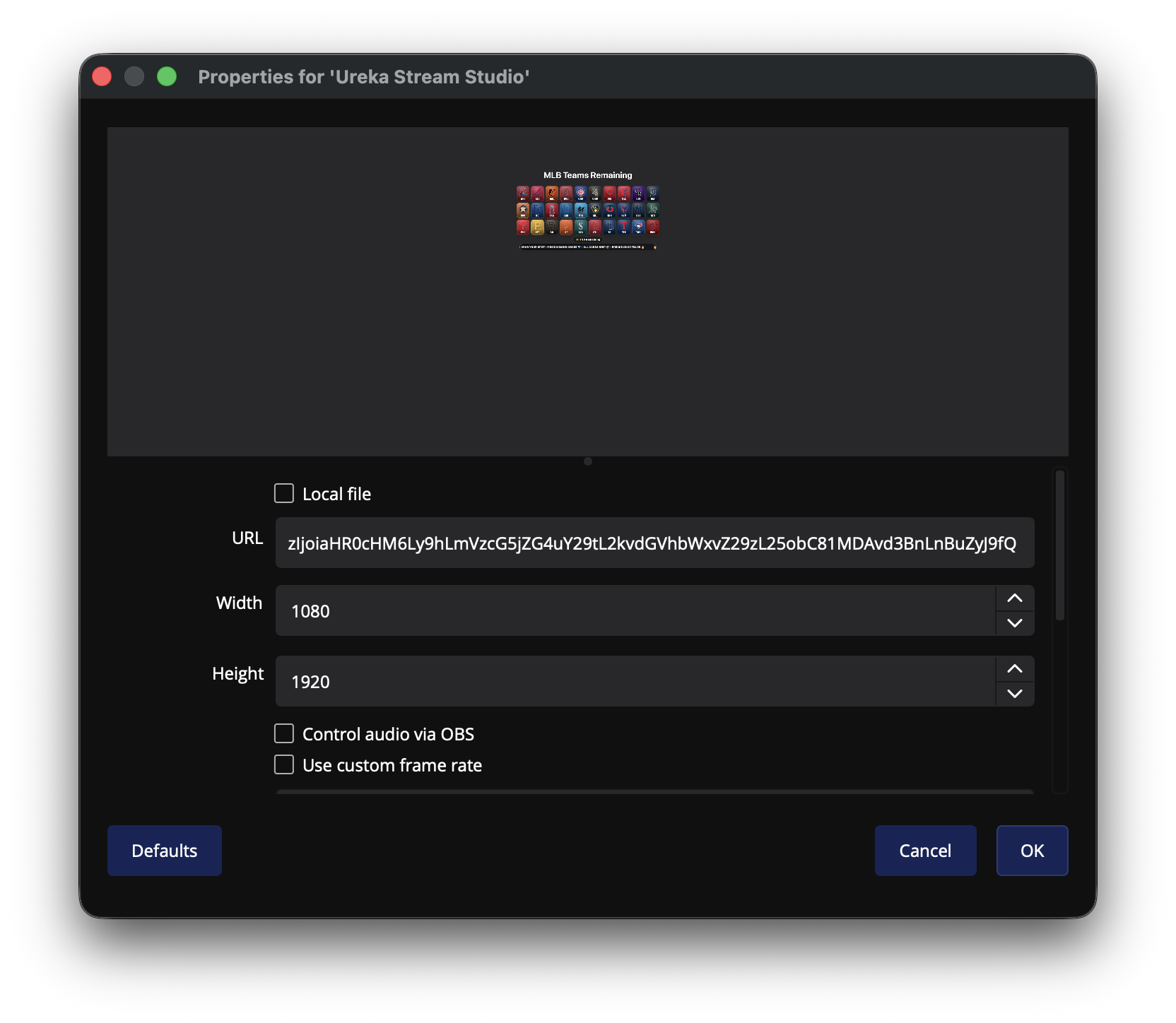
Create one OBS Browser Source named Ureka Stream Studio. Set Width to 1080 and Height to 1920.
Open the Seller Dashboard, connect the username, pin the break you are currently running, and confirm the Whatnot Connection area reaches READY TO BREAK. Ureka detects the pinned break automatically.
display.html output.Select MLB, NBA, NFL, or NHL. You can also paste a custom list and click Update Teams.
Open Properties to choose Classic, Broadcast Board, or Center Logo Board; adjust title, counter, ticker, team colors, and center branding.
The live preview reflects the selected skin and current setup. Verify the title, tile arrangement, counter, and ticker before copying the URL.
Automatic Whatnot sync marks teams taken. For a reduced MLB, NBA, NFL, or NHL break, Ureka reads through Whatnot’s virtualized team list, compares the complete observed roster with the league board, and blacks excluded teams out using the normal taken-team appearance. If the full roster cannot be read, use Teams not in randomizer in the Live Control Panel as the safe fallback.
Paste one item per line in the List Editor and click Update List. Give the display a clear title.
By default, purchased chase names stay visible and are clearly marked TAKEN. You can optionally remove them from the board in Properties.
Chase List supports Classic, Broadcast Board, and Center Logo Board. Confirm the selected design in the live preview.
After copying the Chase List OBS URL, Manual Backup Controls show the exact active list. Remove or restore items from the controller only when a live correction is needed.
Confirm the extension shows the correct Ureka account, Whatnot seller, active display, and automatically detected pinned break before the break starts.
Trigger Stash or Pass, See 2 Pick 1, 2 Teams, 2 Players, Giveaway, Trade Window, Last Spot, or a custom message.
For Team Board, mark teams available or taken. For Chase List, remove or restore chase items. These are failsafe controls; normal updates are automatic from Whatnot.
Normally Ureka detects reduced league rosters automatically by reading the full Whatnot randomizer list. Use this selector only as a manual fallback when Whatnot prevents the connector from collecting the complete roster.
Open the clean display in a browser to verify it independently from OBS.
Use this after opening or refreshing the Whatnot Seller Dashboard, or when the extension has stopped receiving changes.
Use manual controls when the live Whatnot widget and the Ureka output do not match. Correct the board, then verify the display.
Run this before every show.
Confirm Ureka is signed in in the same Chrome profile, reopen the Whatnot Seller Dashboard, then click Restart Sync. Reload the extension from chrome://extensions if needed.
Copy a fresh OBS URL from the correct active tool, paste it into the existing Ureka Stream Studio Browser Source, and click OK. Do not reuse an old URL.
Return to the correct Team Board or Chase List and click Copy OBS URL again. The controller follows the most recently copied display.
Open Browser Source properties and confirm Width is 1080 and Height is 1920. Then reset or resize the source transform in the scene.
Verify the URL starts with the Ureka site and opens display.html. Open the same URL in Chrome. If it does not load, copy a fresh URL while signed in.
Use Manual Backup Controls to correct the item immediately. Then restart sync and visually confirm the clean display matches the current Seller Dashboard.
Confirm the correct Whatnot break is pinned, refresh the Seller Dashboard, restart extension sync, and verify the extension is connected to the correct seller and Ureka display.
Disable or remove the older copy. Only one Ureka Stream Controller version should be enabled at a time.
Step 1: Set up your break